.png)
Stop Wasting Time on Manual Bill Pay: How the Latest QuickBooks Updates Speed Up Your Workflow
Let’s be honest for a second: nobody goes into business because they’re excited about paying bills. In fact, for most of the small business owners I coach, "Bill Pay Day" is about as popular as a root canal. You’re hunting down invoices in your inbox, squinting at paper receipts, manually typing in account numbers, and triple-checking that you didn't accidentally add an extra zero to the electric bill.
It’s tedious. It’s manual. And quite frankly, it’s a waste of your valuable time.
As we sit here in April 2026, the landscape of small business accounting has shifted. If you’re still doing things the "old way", manually entering every bill and writing physical checks, you’re leaving hours of productivity on the table. QuickBooks has rolled out some massive updates recently that turn that clunky, hours-long process into something you can manage in a few clicks while you sip your morning coffee.
I’m Susan Hagen, and today I want to walk you through exactly how these new QuickBooks features can revolutionize your workflow. Let's reclaim your Tuesday afternoons.
The AI Revolution: Automated Bill Capture
The biggest time-sink in bill pay is data entry. Typing in the vendor name, the date, the amount, and the due date is where most errors happen. QuickBooks has solved this with AI-powered automated bill capture.
Here’s how it works now: instead of sitting down with a stack of papers, you can forward any digital invoice to a custom QuickBooks email address. If you have a physical receipt, you just snap a photo with the mobile app.
QuickBooks’ AI then goes to work. It "reads" the document, extracts the vendor, the amount, and the date, and drops it into your "For Review" tab. You aren't "entering" data anymore; you’re just "verifying" it. This tiny shift in workflow saves my clients anywhere from two to five hours a month.
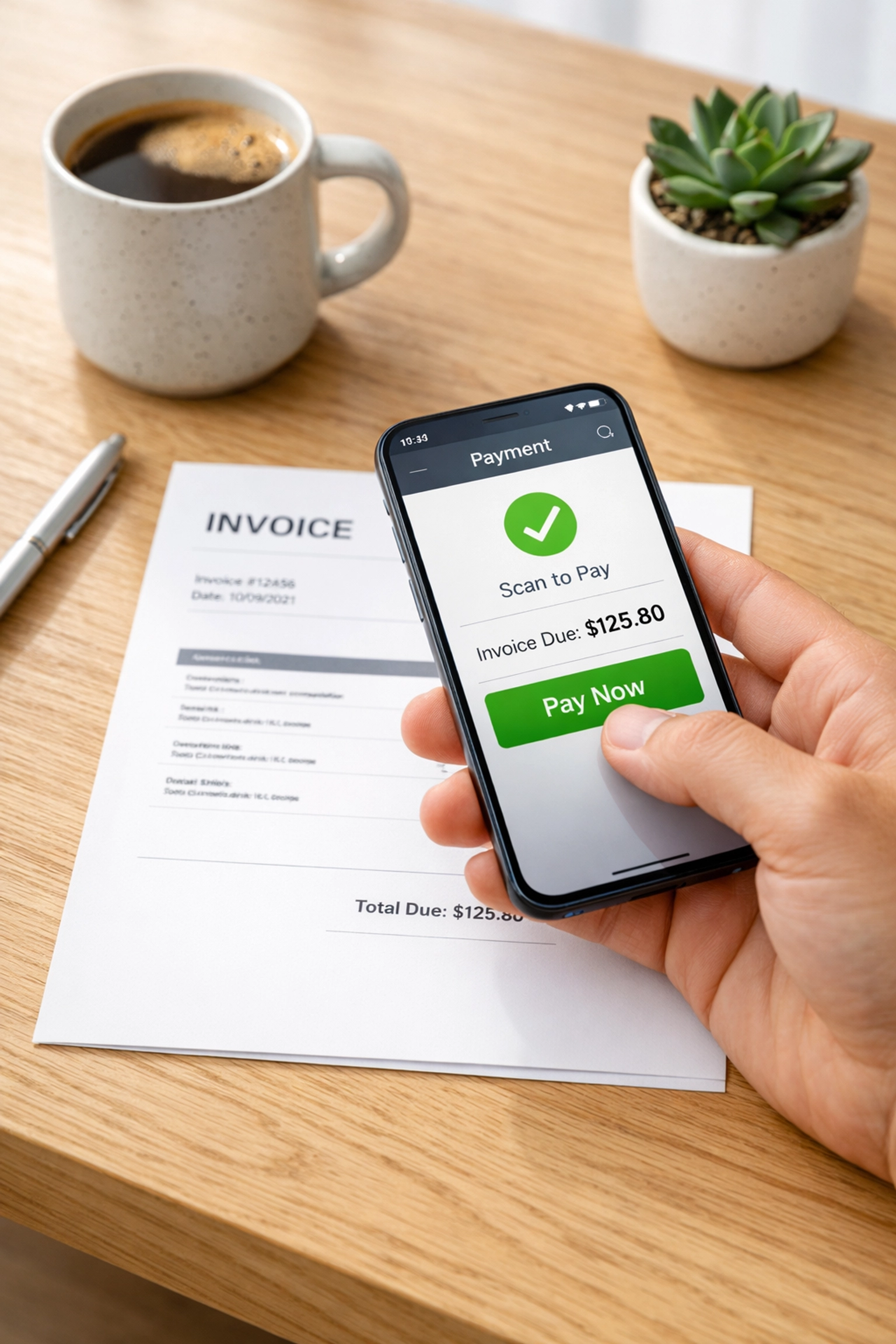
When you're ready to review, you just check that the AI got the numbers right, assign it to a category (or let QuickBooks’ intelligent categorization do it for you), and it’s ready to be scheduled. If you feel like you need a bit more guidance on getting this set up, my QuickBooks One-on-One Training is a great place to start.
Parallel Approvals: No More Waiting for "The Boss"
In the past, if your business had a multi-step approval process, everything was sequential. Bill comes in -> Bookkeeper looks at it -> Manager approves it -> Owner signs off. If the Manager was on vacation or just busy, the whole train came to a screeching halt.
The latest updates have introduced Parallel Approval Workflows. This means you can configure the system so that multiple people can authorize a payment at the same time. You can set rules, for example, any bill over $1,000 needs two approvals, but any two of your three managers can provide them.
This eliminates the "bottleneck" effect. Your vendors get paid on time, your credit stays golden, and you don't have to spend your day sending "Did you see that invoice?" Slack messages.
Bulk Payment Processing: The "Click and Done" Method
One of the most requested features I hear about as a business coach is the ability to handle volume. If you have 20 vendors to pay, doing them one by one is exhausting.
QuickBooks has listened. You can now batch up to 20 bills at once (and for those on higher-tier plans, that number is moving toward 50). You simply check the boxes next to the bills you want to pay, review the total, and hit "Pay."

The system handles the distribution. If Vendor A wants an ACH transfer and Vendor B still insists on a paper check, QuickBooks handles the logistics in the background. You just see one clean workflow. This isn’t just a convenience; it’s a massive win for your mental bandwidth.
Choice and Speed: Understanding Your Payment Options
Not every bill is created equal. Sometimes you have a vendor who is fine waiting a few days for a standard ACH, and sometimes you have an emergency repair bill that needs to be settled yesterday.
QuickBooks now offers tiered payment speeds:
Standard ACH: Usually takes a few business days and is often the most cost-effective.
Fast ACH: Can process within one business day if you schedule it before 5:00 p.m.
Instant Payments: For those "oops, I forgot" moments where the money needs to move right now.
Having these options directly inside your accounting software: without having to log into a separate bank portal: keeps your records synced perfectly. No more "missing" transactions that you forgot to record because you paid them through your bank's website instead of QuickBooks.
Bill Pay Basic: What’s the Cost?
A lot of business owners worry that these "fancy" features come with a massive price tag. The good news? Bill Pay Basic is now included with all QuickBooks Online subscriptions at no additional cost.
With the Basic plan, you usually get:
Five free ACH payments every month.
The AI-powered bill capture we talked about.
Standard workflow tools.
If you’re a larger operation, the Premium and Elite tiers offer unlimited transfers and more complex custom approval workflows. For most of my small business clients, starting with the Basic features is enough to see an immediate change in their weekly stress levels. If you're wondering which tier fits your current growth stage, you can check out our service pricing or book a consultation.

Why Manual Entry is Actually Costing You Money
I often hear, "Susan, I don't mind the manual entry, it keeps me close to the numbers." I appreciate the sentiment, but I have to push back on that as a trainer.
When you do manual entry, you are prone to "fat-finger" errors. A $1,200 utility bill becomes $2,100 because of a quick typo. Those errors take hours to find and fix during reconciliation. Furthermore, the time you spend typing in invoice numbers is time you aren't spending on sales, strategy, or customer service.
Automating your bill pay doesn't mean you're "losing touch" with your finances. It means you're moving from a Data Entry Clerk role into a Financial Controller role. You’re still reviewing every dollar that leaves your account: you’re just not doing the grunt work to get the data there.
Integrating it All: The Big Picture
Bill pay is just one piece of the puzzle. When you integrate your store, your bank feeds, and your bill pay, your QuickBooks file becomes a "living" document of your business health.
If you’re also selling on platforms like Amazon or Shopify, getting those integrated alongside your bill pay means your cash flow projections actually become accurate. You can see exactly what’s coming in and exactly what’s scheduled to go out without having to maintain a separate spreadsheet.
If your books are currently a bit of a mess and the idea of "automating" feels like adding high-tech features to a sinking ship, don't worry. We specialize in bookkeeping catch-up to get everything clean and tidy before we switch on these automation tools.
Final Thoughts: Take 5 Minutes to Save 5 Hours
My challenge to you this week is simple: go into your QuickBooks "Bills" tab and look for the "Set up Bill Pay" button. It takes less than five minutes to link your preferred payment account and set up your forwarding email.
Try it with just one vendor. Forward one invoice, see how the AI captures the data, and schedule that one payment. Once you see how seamless it is, you’ll never want to go back to the manual way again.
Managing a business is hard enough. Don't let the paperwork be the reason you feel burnt out. Use the tools available to you, and remember: I’m always here to help you navigate these updates.
If you're ready to take your business to the next level and want to stop DIY-ing your accounting, feel free to contact us. Let’s get your workflow moving at the speed of 2026!
Want more tips on keeping your business finances on track? Check out our Resources page for guides, tools, and updates designed specifically for small business owners like you.
Comments