.png)
How to Integrate QuickBooks with New AI Agents With Your Small Business in 5 Minutes
If you're still manually creating every invoice, chasing down payments, or categorizing expenses one by one, you're probably working way harder than you need to. QuickBooks rolled out some pretty impressive AI agents in 2025 that can handle a lot of these routine tasks for you – and the best part? Getting them set up takes less time than your morning coffee break.
These aren't some fancy third-party add-ons that cost extra or require a computer science degree to figure out. They're built right into QuickBooks Online, and they're designed to handle the predictable stuff so you can focus on actually running your business instead of drowning in administrative tasks.
What Are QuickBooks AI Agents Anyway?
Think of AI agents as really smart assistants that live inside your QuickBooks account. They watch what's happening in your business and proactively suggest actions like creating invoices, sending payment reminders, or categorizing expenses. The key difference from regular automation is that these agents actually think through the context before making suggestions.
For example, if a customer usually pays within 30 days but suddenly hasn't paid an invoice that's 45 days overdue, the AI agent will notice this pattern change and suggest a specific follow-up action. It's not just blindly sending reminders – it's actually analyzing your business relationships and suggesting the right next step.

The agents started rolling out across QuickBooks Online in summer 2025, with major updates in September that expanded what they can do. And here's the thing – you probably already have access to them if you're on a current QuickBooks Online plan.
The 5-Minute Setup Process
Alright, let's get these AI agents working for your business. I'm not kidding about the 5-minute timeline – this really is quick.
Step 1: Enable the Business Feed (1 minute)
Log into your QuickBooks Online account and look for the Business Feed on your dashboard. This is where all the AI suggestions will show up. If you don't see it immediately, check your settings menu under "Account and Settings" and make sure you're opted into the latest QuickBooks experience.
The Business Feed looks like a social media timeline, but instead of cat videos, you'll see suggestions like "Draft invoice for ABC Company" or "Review this expense categorization." If you're not seeing these kinds of suggestions yet, your account might not have the AI features fully activated.
Step 2: Set Up Review and Approval Settings (2 minutes)
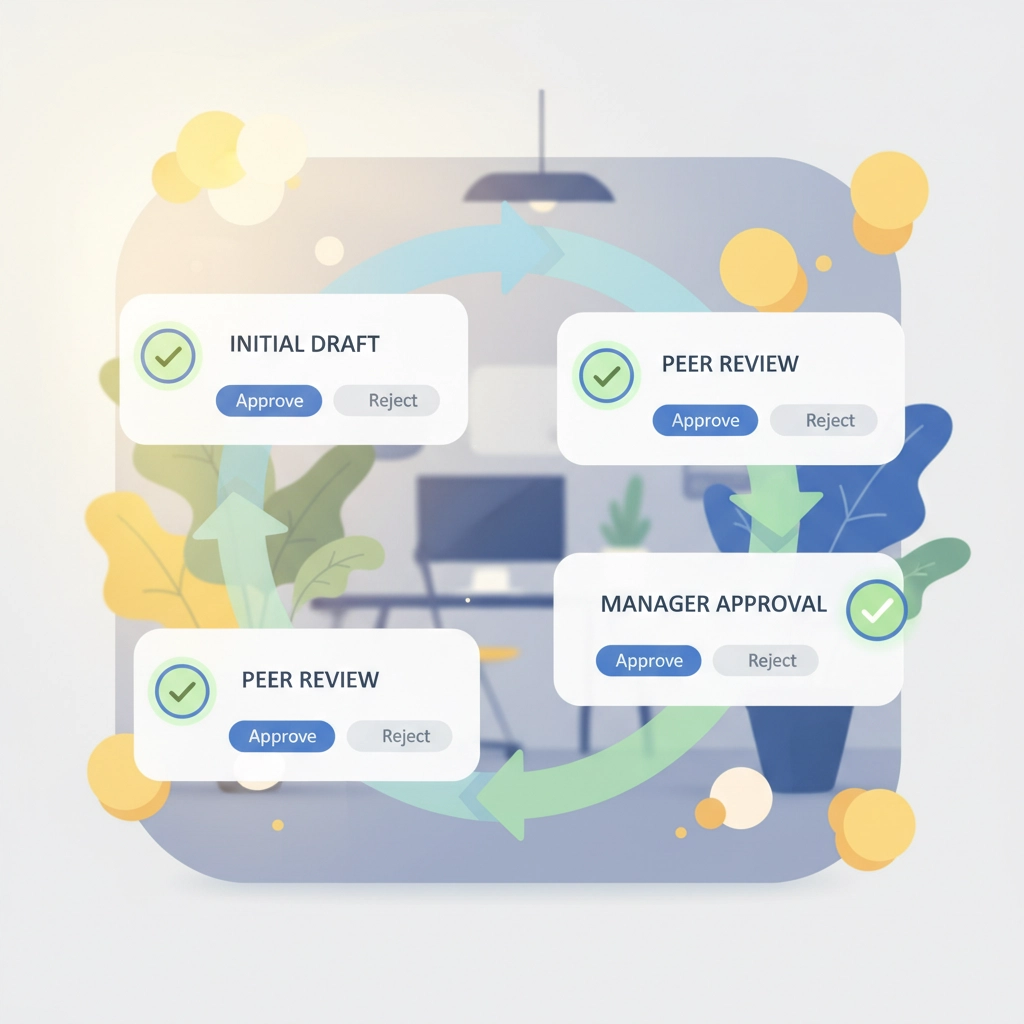
This is the most important step, so don't skip it. You want every AI suggestion to come to you for approval before it actually posts anything to your books. Trust me on this – even the smartest AI can make mistakes, and you don't want those mistakes showing up on your financial reports.
Go to your settings and find the AI or automation section. Set everything to "Review before posting." This means when the AI agent suggests creating an invoice or categorizing an expense, it'll show up in your Business Feed as a draft that you can approve, edit, or reject.
Step 3: Clean Up Your Data (2 minutes)
AI agents work best with clean, consistent data. Take a quick look at your vendor and customer lists and fix the obvious problems. Merge any duplicates you see, make sure customer names are spelled consistently, and verify that your most common vendors have complete contact information.
You don't need to make everything perfect – just handle the big issues that would confuse the AI. If you have three different entries for the same supplier because someone typed "ABC Company," "ABC Co," and "ABC Company LLC," merge those into one clean record.
This cleanup pays dividends because the AI uses this data to make better suggestions about vendor matching, invoice creation, and expense categorization.
What These AI Agents Actually Do
Once you're set up, the AI agents start working behind the scenes immediately. Here's what they'll help you with:
Invoice Management: The agents can draft invoices based on your patterns, suggest follow-up actions for overdue payments, and even help with customer communication. If you typically invoice the same customers for similar services each month, the AI will start suggesting these invoices automatically.
Expense Categorization: Instead of manually categorizing every transaction, the AI learns your patterns and suggests categories. It gets smarter over time, so a gas station charge that you always categorize as "Vehicle Expenses" will automatically get that suggestion.
Payment Tracking: The agents monitor payment patterns and flag unusual activity. If a customer who usually pays Net 30 suddenly goes 60 days without paying, you'll get a proactive notification with suggested actions.

Customer Relationship Management: The AI can track customer interactions and suggest when to follow up on quotes, send thank-you notes, or reach out about repeat business opportunities.
Maintaining Accuracy After Setup
Here's something a lot of people miss – AI agents are incredibly helpful, but they're not infallible. The key to making this work is building good review habits from day one.
Set aside 10-15 minutes each morning to review the AI suggestions in your Business Feed. Most of them will be spot-on and you can approve them with one click. Others might need small tweaks, and occasionally you'll reject a suggestion entirely.
Keep doing your regular reconciliations – weekly at minimum. The AI handles the routine stuff, but you still need to make sure everything matches your bank statements. Think of the AI as a really good assistant, not a replacement for basic financial oversight.
Troubleshooting Common Issues
"I'm not seeing any AI suggestions": Check that you're on a current QuickBooks Online plan and that you've opted into the latest interface. Some older plans or legacy setups don't include the AI features.
"The suggestions don't make sense": This usually means your underlying data needs more cleanup. Spend some time standardizing vendor names, customer information, and expense categories.
"It's suggesting the wrong expense categories": The AI learns from your past categorizations. If you've been inconsistent with how you categorize similar expenses, it'll be confused too. Take some time to recategorize recent transactions consistently, and the AI will start making better suggestions.

Advanced Features to Try Next
Once you're comfortable with the basic AI agents, there are some more advanced features worth exploring:
Natural Language Reporting: You can ask questions like "How much did we spend on marketing last quarter?" and get instant answers without building custom reports.
Predictive Cash Flow: The AI can analyze your patterns and give you early warnings about potential cash flow issues.
Customer Communication: Some of the newer features can help draft professional follow-up emails for overdue invoices or thank-you notes for prompt payments.
What to Expect Going Forward
QuickBooks is continuing to expand what these AI agents can do. The updates in September 2025 added a lot more functionality, and they're clearly investing heavily in this technology.
The goal isn't to replace human judgment – it's to handle the predictable, time-consuming tasks so you can focus on strategy, customer relationships, and actually growing your business. The AI handles the routine stuff, you handle the important decisions.
Getting the Most Value
The businesses that get the most value from AI agents are the ones that use them consistently and trust but verify. Set up good review habits, keep your data clean, and don't be afraid to reject suggestions that don't make sense.
Remember, this isn't about making your bookkeeping perfect – it's about making it more efficient. Even if the AI agents only handle 60-70% of your routine tasks, that's still hours per week you get back to focus on more important things.
The 5-minute setup really is just the beginning. The real value comes from consistently using and refining the system over the next few weeks. But getting started is the hardest part, and now you know exactly how to do it.
Comments