.png)
How to Prep Your W-2s and 1099s in 5 Minutes Using QuickBooks (2025 Compliance Guide)
Tax season is around the corner, and if you're using QuickBooks, you're already ahead of the game. But 2025 brings some important changes that could cost you money if you're not prepared. The good news? With the right approach, you can knock out your W-2s and 1099s in just a few minutes while staying compliant and avoiding surprise fees.
Let's dive into what's new for 2025 and how to handle your year-end tax forms like a pro.
What's Changed in 2025: The $4 Fee You Need to Know About
Starting in January 2025, QuickBooks is implementing a $4 per form fee for printing and mailing W-2s and 1099s. This might not sound like much, but if you have 20 employees, that's an extra $80 you weren't planning on spending.
Here's the kicker: you have until January 3, 2025, to change your W-2 settings to avoid automatic print-and-mail charges. Miss this deadline, and QuickBooks will automatically print and mail your W-2s at $4 per employee.
The silver lining? E-filing remains included in your subscription, and electronic delivery is now the default for 1099s when vendor email addresses are available.
Your 5-Minute Action Plan
Before we get into the detailed steps, here's your quick checklist:
Before January 3, 2025:
Update W-2 delivery settings in QuickBooks
Set up employees on QuickBooks Workforce for paperless delivery
Verify all vendor email addresses for 1099s
For 1099 Preparation:
Navigate to Expenses > 1099 Filings
Review vendor information and payment amounts
Exclude credit card/PayPal transactions (automatically reported)
Choose electronic delivery method
E-file your forms
For W-2 Preparation:
Access Payroll settings
Prepare W-2s using QuickBooks workflow
E-file by February 2, 2025 deadline
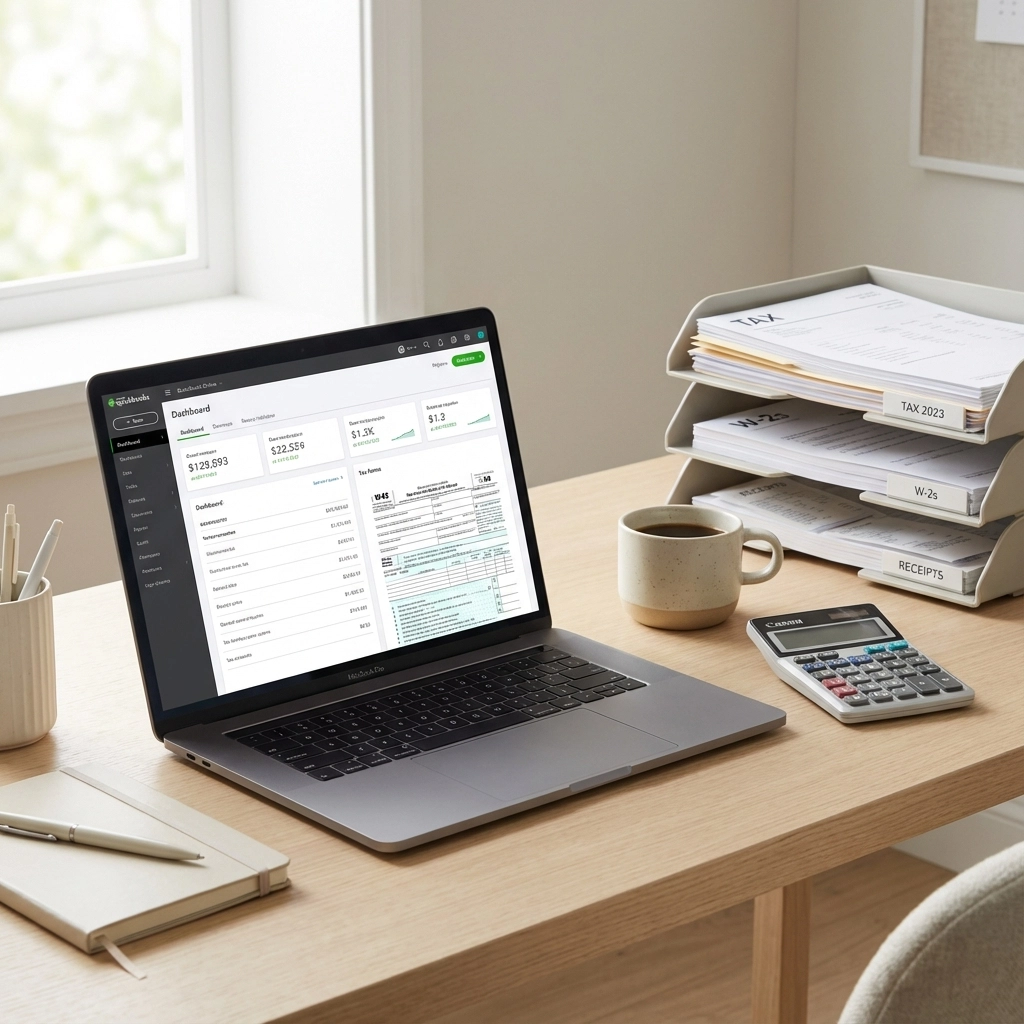
Preparing Your 1099s: Step-by-Step
Step 1: Access Your 1099 Filing Section
In QuickBooks Online, head over to the Expenses tab on your left navigation menu. You'll see a 1099 Filings tab: click on that. This is your command center for all things 1099.
Step 2: Hit the "Prepare 1099s" Button
Once you're in the 1099 filings section, look for the "Prepare 1099s" button. This launches QuickBooks' guided workflow that walks you through the entire process. Think of it as your personal 1099 assistant.
Step 3: Review Your Vendor Information
QuickBooks will prompt you to verify vendor details, including:
Names and addresses
Tax ID numbers
Payment amounts for the year
Business vs. individual classification
Pro tip: Double-check these details now. Fixing errors after filing is a hassle you don't want to deal with during busy season.
Step 4: Let QuickBooks Do the Heavy Lifting
Credit cards
Debit cards
PayPal
Gift cards
Why? Because payment processors already report these transactions separately, so you don't need to issue 1099s for them. One less thing to worry about!
Step 5: Choose Your Delivery Method
This is where you can save money. QuickBooks now defaults to electronic delivery for 1099s when vendor email addresses are available. For vendors without email or those who haven't consented to paperless delivery, you have options:
Download and print yourself (free)
Have QuickBooks print and mail ($4 per form)
Step 6: E-File Your Forms
If you have 10 or more combined tax forms (1099s, W-2s, etc.), you're required to file electronically. Even if you have fewer, e-filing is usually faster and more reliable than paper filing.
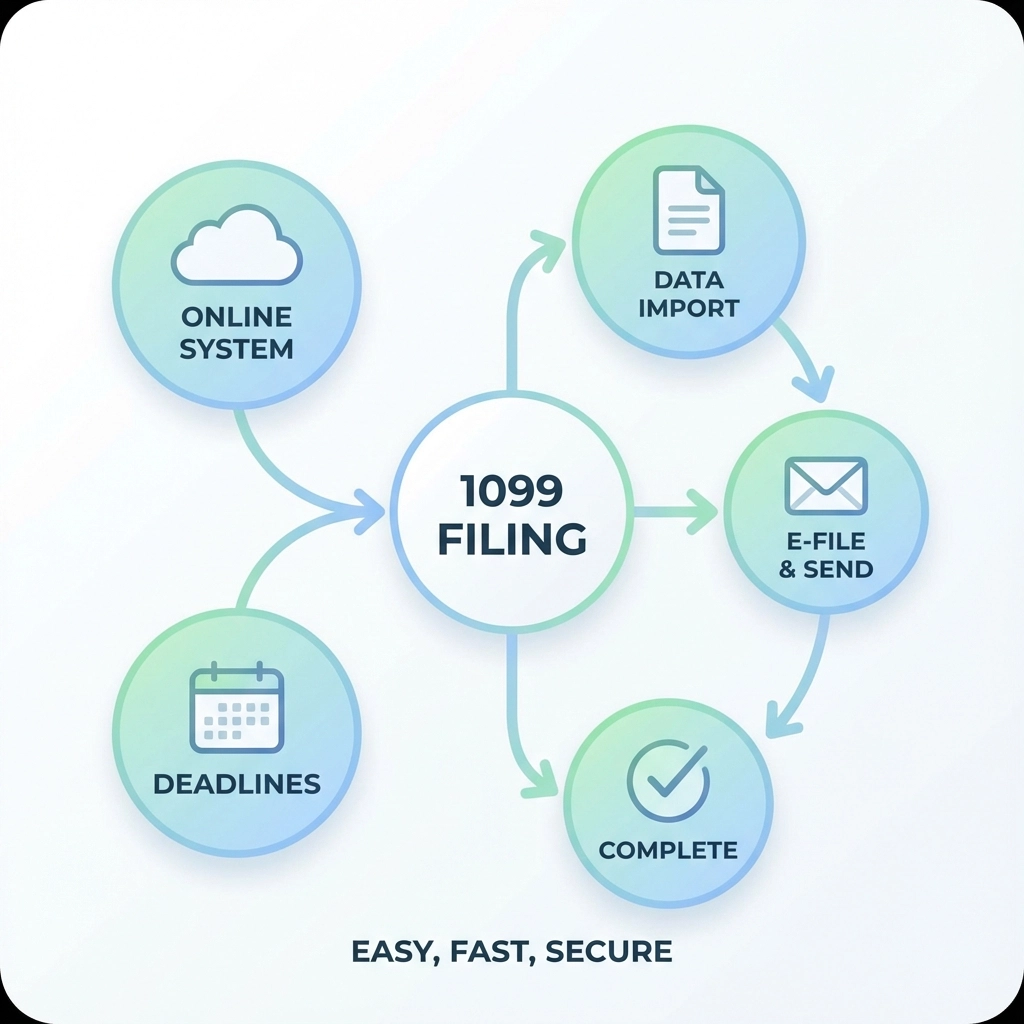
Preparing Your W-2s: The Critical Steps
Step 1: Update Your Settings Before January 3, 2025
This cannot be stressed enough: you must change your W-2 delivery settings before January 3, 2025. Here's how:
Go to your Payroll section in QuickBooks
Find your W-2 settings or Year-end forms section
Update your delivery preferences to electronic/paperless
Step 2: Set Up QuickBooks Workforce (Highly Recommended)
QuickBooks Workforce is a free employee portal where your team can:
View their pay stubs and W-2s
Update personal information
Opt into paperless delivery
Getting your employees set up on Workforce before year-end can save you $4 per employee in printing and mailing fees.
Step 3: Prepare Your W-2s
QuickBooks makes W-2 preparation straightforward:
Access your payroll section
Follow the W-2 preparation workflow
Verify employee information and year-end totals
Review tax withholdings and deductions
Step 4: E-File by the February 2 Deadline
Mark your calendar: W-2s must be e-filed by February 2, 2025. If you're using QuickBooks Online Payroll Core, Premium, or Elite, your state W-2s automatically file with your federal W-2s: no extra steps required.
Understanding E-Filing Requirements
The 10-form rule is important to understand. If you have 10 or more combined federal tax forms (W-2s, 1099s, etc.), you must file electronically. This isn't per form type: it's total forms.
For example:
8 W-2s + 3 1099s = 11 forms = Must e-file
5 W-2s + 4 1099s = 9 forms = Can paper file (but why would you?)

Money-Saving Tips for 2025
Go Paperless: The biggest money-saver is embracing electronic delivery. Set up your employees on QuickBooks Workforce and ensure you have current email addresses for all vendors.
Update Information Early: Don't wait until the last minute to verify addresses and contact information. Returned mail costs extra time and money.
Use E-Filing: Even if you're not required to e-file, it's faster, more secure, and included in your QuickBooks subscription.
Review Your Vendor List: Clean up your vendor list throughout the year. Remove duplicates and update information as you go, rather than scrambling at year-end.
Common Mistakes to Avoid
Waiting Until the Last Minute: Start your year-end prep in December, not January. This gives you time to fix any issues without rushing.
Forgetting About the January 3 Deadline: Set a reminder now to update your W-2 settings before January 3, 2025.
Not Verifying Vendor Information: Incorrect addresses or missing tax ID numbers can delay your filings and create compliance issues.
Including Credit Card Payments: Remember, credit card and PayPal payments are automatically excluded from 1099 reporting.
Mixing Up Classification: Make sure you're clear on which vendors get 1099-NECs (services) versus 1099-MISCs (other payments).
Staying Compliant in 2025
Compliance doesn't have to be complicated. QuickBooks handles most of the heavy lifting, but you still need to:
Maintain accurate records throughout the year
Keep vendor tax information current
Meet filing deadlines
Respond to any IRS correspondence promptly
The key is staying organized year-round rather than scrambling during tax season. If you need help getting your systems in place, consider working with a professional who can help you set up processes that make year-end prep truly take just five minutes.
Remember, the changes coming in 2025 are designed to push businesses toward more efficient, electronic processes. Embrace the change, update your settings before January 3, and you'll save both time and money.
Need additional support with your year-end processes or QuickBooks setup? Check out our QuickBooks training programs to get the most out of your accounting software.
The bottom line: with a little prep work now, your 2025 tax season can be smoother and cheaper than ever before. Take action on these steps today, and you'll thank yourself come January.
Comments