.png)
How to Read Your QuickBooks Reports Like a Pro (No Accounting Degree Needed)
Staring at your QuickBooks reports shouldn't feel like trying to decode ancient hieroglyphics. Those numbers are telling the story of your business: you just need to know how to read between the lines. The good news? You don't need a fancy accounting degree to understand what your reports are saying. You just need someone to translate the financial jargon into plain English.
Let's break down everything you need to know about reading QuickBooks reports like a seasoned pro, without all the accounting mumbo-jumbo.
Getting Started: Where to Find Your Reports
First things first: finding your reports in QuickBooks Online is easier than you think. Just click on the Reports tab in your left navigation menu. You'll see over 60 different reports organized into categories, but don't let that overwhelm you. Most small business owners only need to understand about five key reports to make smart financial decisions.
QuickBooks organizes these reports into three main types:
Summary Reports give you the big picture without getting lost in the details. Think of these as your business's highlight reel: they show totals and key numbers at a glance.
Detail Reports are like reading the entire novel instead of just the book summary. These break down every transaction, so you can see exactly what contributed to each number.
List Reports show you the building blocks of your business: your customers, vendors, products, and accounts. These help you understand the relationships and resources that make your business tick.
The Big Three: Reports Every Business Owner Must Know
Your Profit and Loss Statement (P&L)
This report answers the million-dollar question: "Am I making money?" Your P&L shows your revenue minus your expenses over a specific time period. It's like a financial report card for your business.
Here's how to read it without getting a headache:
Start at the top with your Total Revenue: this is all the money your business earned during the period. Then scan down through your expenses, which QuickBooks organizes by category (like office supplies, marketing, rent). The magic number is at the bottom: your Net Income. If it's positive, you're profitable. If it's negative, you're spending more than you're earning.
Pro tip: Don't just look at one month. Compare your P&L across different periods to spot trends. Is your revenue growing? Are any expense categories getting out of hand?

Your Balance Sheet
Think of your Balance Sheet as a financial snapshot of your business on a specific day. It shows three things:
Assets are everything your business owns that has value: cash in the bank, money customers owe you, inventory, equipment, and more.
Liabilities are what your business owes: credit card balances, loans, unpaid bills to vendors.
Equity is what's left over for you as the business owner after you subtract what you owe from what you own.
Here's the key rule: Assets must always equal Liabilities plus Equity. If they don't match, something's off in your bookkeeping.
The Balance Sheet tells you about your business's financial health. Lots of assets and low liabilities? You're in good shape. High liabilities compared to assets? Time to focus on paying down debt.
Cash Flow Statement
This report tracks the actual cash moving in and out of your business. Here's why it matters: you can be profitable on paper but still struggle to pay bills if customers haven't paid their invoices yet.
Your Cash Flow Statement shows:
Operating Activities: Cash from your day-to-day business operations
Investing Activities: Cash spent on or earned from business investments like equipment
Financing Activities: Cash from loans, credit lines, or money you've invested in the business
Making Reports Work Harder for You
Customization is Your Friend
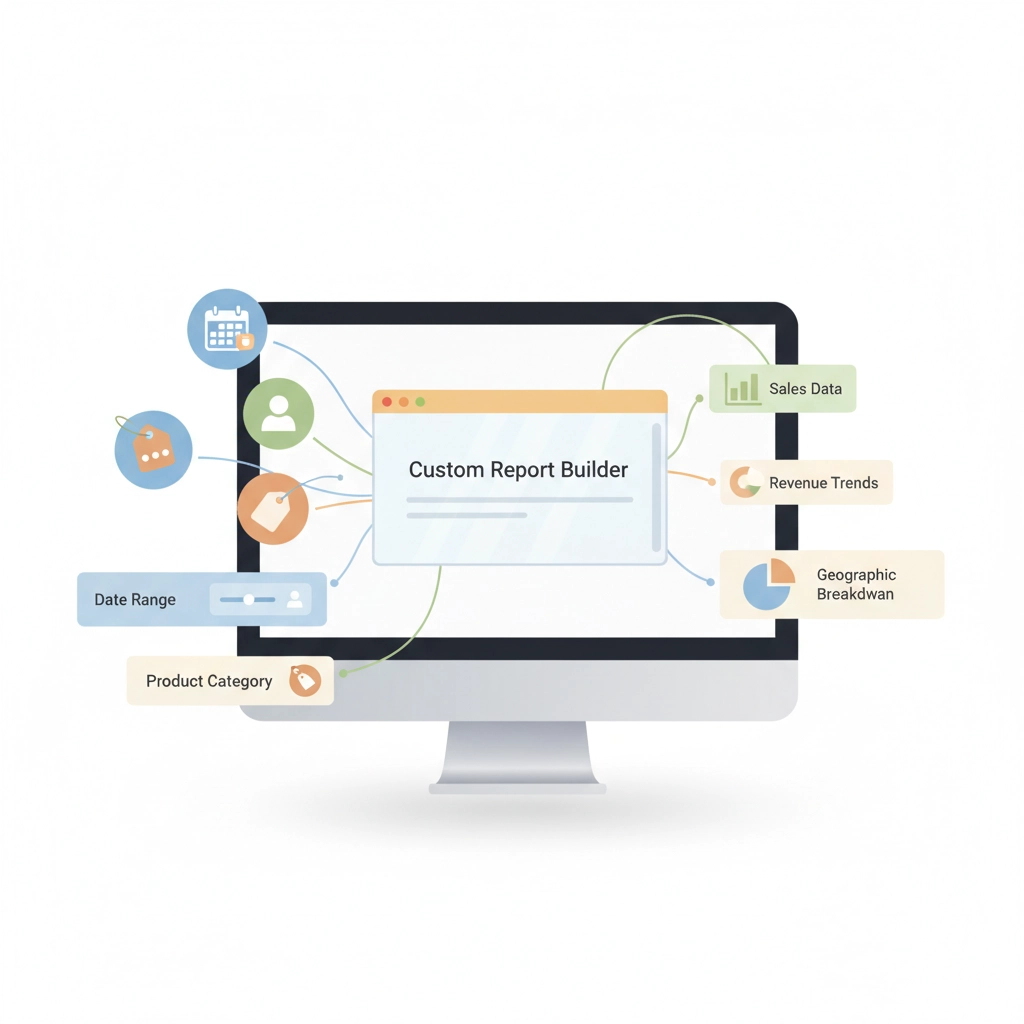
Here's a rookie mistake that frustrates tons of business owners: they open a report and immediately think it's broken because the dates or data don't look right. Always scroll up to see your customization options at the top of any report.
The most important customization? Date ranges. Click that date dropdown and select preset options like "Last Quarter," "This Year," or create custom date ranges. Then hit Run Report to update everything.
You can also filter reports by specific customers, accounts, or transaction types. Want to see how much one client contributed to your revenue? Filter your P&L by that customer. Need to track expenses for a specific project? Filter by class or location if you've set those up.
Drill Down Into the Numbers
One of QuickBooks' best features is the ability to click on any number in a report to see the individual transactions behind it. This is incredibly helpful when you're thinking, "Wait, where did this number come from?"
Click on any amount, and QuickBooks shows you every transaction that contributed to that total. Need to get back to the main report? Just click the blue "Back to report summary" link.
Save Your Custom Reports
Once you've set up a report with the perfect date range and filters, don't recreate it from scratch every time. QuickBooks lets you memorize customized reports so they're always just a click away.
Reading Reports Like a Detective
The real skill in reading QuickBooks reports isn't just knowing what the numbers mean: it's knowing what questions to ask:
When looking at your P&L:
Which revenue streams are growing or shrinking?
Are any expense categories taking up a bigger chunk of your revenue than before?
How does this month compare to the same month last year?
When reviewing your Balance Sheet:
How much cash do you have on hand compared to your monthly expenses?
Are customers paying you faster or slower than before?
Is your debt-to-equity ratio getting better or worse?
When analyzing Cash Flow:
Do you have enough cash to cover upcoming expenses?
Are there seasonal patterns in your cash flow you need to plan for?
Where is most of your cash being spent?

Common Mistakes to Avoid
Don't ignore the accounting method. QuickBooks can show reports on either a cash basis (when money actually changes hands) or accrual basis (when transactions occur, regardless of payment). Make sure you're using the right method for your business and understanding which method your reports are showing.
Don't rely on just one report. Your P&L might show profit, but your Cash Flow Statement might reveal cash problems. Use multiple reports together to get the full picture.
Don't forget to verify your data. Reports are only as accurate as the information you put in. If something looks off, dig into the transactions to make sure everything's categorized correctly.
Making Reports Part of Your Routine
The most successful business owners don't just pull reports when they need a loan or during tax season. They make report review a regular habit:
Check your P&L monthly to track profitability trends
Review your Balance Sheet quarterly to monitor overall financial health
Look at your Cash Flow weekly if you have tight cash flow, monthly if things are stable
Pull an Accounts Receivable report weekly to stay on top of collections
Your Next Steps
Start with these three reports and master them before moving on to more specialized ones. Remember, you don't need to understand every line item perfectly: focus on the big trends and patterns that affect your business decisions.
If you're still feeling overwhelmed by your reports, consider getting some professional guidance to make sure you're interpreting everything correctly. Sometimes a little expert help upfront saves you from making costly mistakes down the road.
The goal isn't to become an accountant: it's to become a more informed business owner who can use financial data to make smarter decisions. With practice, reading QuickBooks reports will become as natural as checking your email.
Comments