.png)
QuickBooks Online Hacks Every Small Business Owner Should Know
Automation Hacks for Recurring Tasks
If your business has any form of fixed routine—think rent, software subscriptions, subcontractor fees, or even daily sales—QuickBooks Online (QBO) can handle much of the repetitive work for you. Two hacks here can save hours every month.
Recurring Transactions
You don’t need to enter the same expense or invoice over and over again. QBO’s Recurring Transactions feature automates regular bills and invoices, applying the right categories and dates to each one. Find it under the Gear Icon → Recurring Transactions. Set up your frequency, amounts, and accounts just once—QuickBooks will take over from there.
Pro Tip: Don’t set and forget! Make it a monthly ritual to review your active recurring transactions. That way, you’ll catch any outdated or incorrect entries before they pile up.
Batch Processing
If you’re a business juggling several customers, payees, or vendors at once, Batch Processing is a must-know. With QuickBooks Online Advanced, you can upload a whole spreadsheet of invoices, checks, or bills in a single go.
This feature is especially loved by construction firms, agencies, or legal practices that invoice dozens—even hundreds—of clients. Instead of performing manual data entry for every transaction, do it all in a few clicks. Fast, easy, and pain-free.

Navigation and Workflow Optimization
Moving between menus, searching for the same reports, and trying to remember where you left off in QuickBooks drains more time than you realize. Use these navigation hacks to make your life easier:
The Multi-Tab Trick
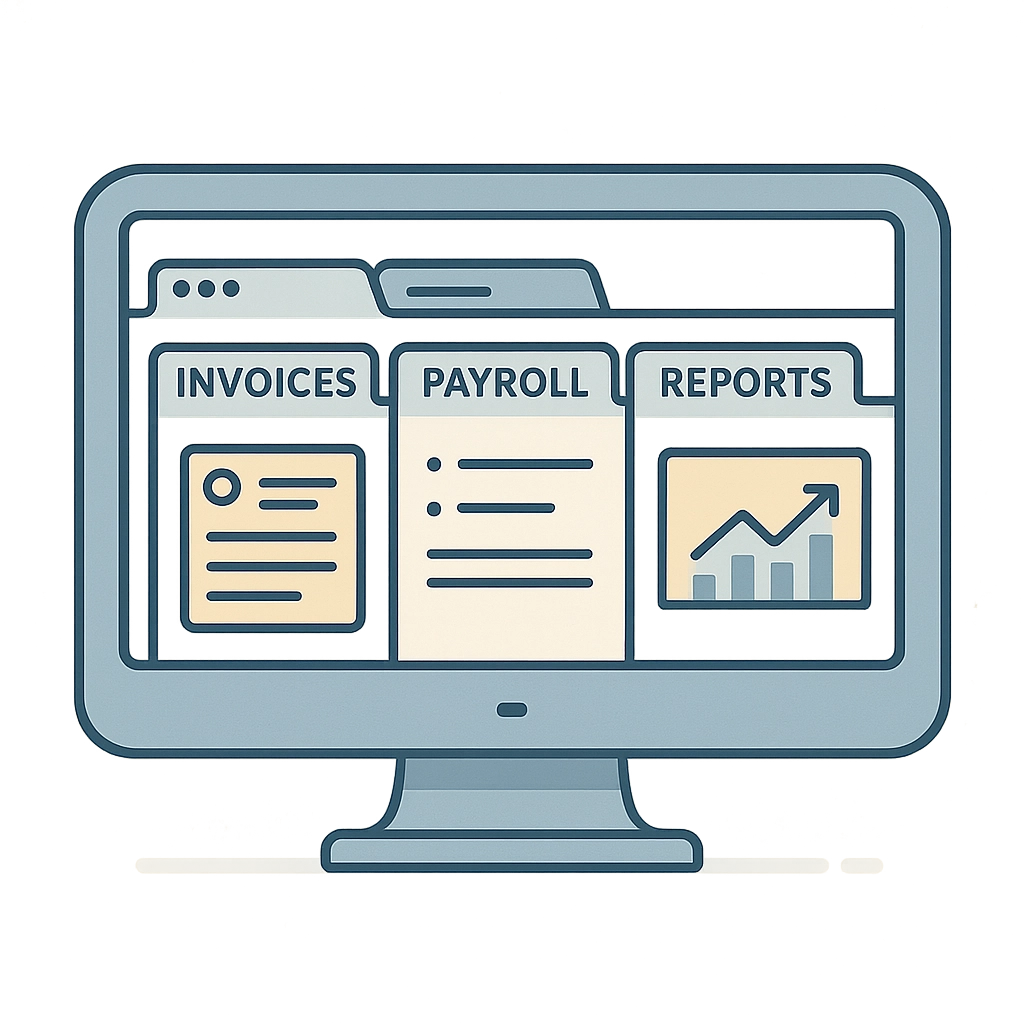
Here’s one of the simplest time-savers: open QBO in multiple browser tabs. A tab for your dashboard, a tab for expenses, a tab for invoices—no more back-and-forth, no losing your place.
If you’re reconciling accounts, try this: keep one tab on your Bank Feed and another on your Reconciliation screen. You’ll dramatically cut down context-switching and mistakes.
Bookmark Your Favorites
Bookmark those pages you visit all the time—like Reports, Sales, Expenses, or Customer lists. You can even organize a folder in your browser just for QuickBooks shortcuts. It seems tiny, but multiply those saved clicks by months, and you’re buying back real hours.
Pro Tip: You can even bookmark filtered or custom report views, saving your specific settings for next time.
Advanced Inventory Management
Businesses that manage products appreciate how quickly inventory and supply headaches can pile up. Luckily, QBO isn’t just for service-based firms—the platform comes with some powerful inventory tools that are often forgotten.
Real-Time Inventory Tracking
QuickBooks Online will automatically update your inventory counts with every sale or purchase you log. You’ll see “low stock” alerts before you run out and miss another sale, or worse, upset a regular customer. Less manual tracking, fewer spreadsheet errors.
Inventory Reports and Analytics
Which product turns fastest? Where are you overstocked? QBO delivers pre-made inventory performance reports that help you track top sellers, slow movers, and critical stock levels. Use these insights to trim your inventory and invest only in what moves.

Vendor and Contractor Management Hacks
Working with freelance contractors or outside vendors? Tracking those 1099s can be a hassle—unless you use the right QBO features:
1099 Vendor Tracking
Mark vendors or subcontractors as “1099 eligible.” When you pay them, QuickBooks will track and categorize each payment. Come tax time, generating accurate 1099-MISC forms is as easy as exporting the report—no tangle of spreadsheets or desperate email searches.
Bonus: This keeps you compliant and reduces your risk in the case of an audit or vendor dispute.
Automated W-9 Collection
A quick workflow tip: When setting up a new vendor, create a checklist that includes collecting the W-9 form right away. Store it as an attachment in QBO. Now you’re always audit-ready, organized, and way ahead of schedule.

Customization for Your Business
QuickBooks Online ships with generic settings and categories, which are often a mismatch for growing businesses. Customization is where QBO can really shine for your unique needs.
Chart of Accounts Customization
Ditch the default Chart of Accounts! Take the time up front to customize your categories to fit your business. For example, you might want specific income accounts for “Service Revenue” vs. “Product Revenue” or detailed expense accounts for various marketing activities.
Why does it matter? Tailored accounts result in cleaner, more actionable financial reports (and your accountant will thank you).
Automatic Expense Categorization
QBO can “learn” how you like expenses categorized. With bank rules and auto-categorization, transactions like software subscriptions, fuel, or meals will start filing themselves, leaving you to simply review and approve. The more you guide QBO, the smarter it gets.
Reporting and Analysis Shortcuts
The power of QuickBooks isn’t just in record-keeping—it’s in the actionable insights you can quickly pull out.
Custom Reports at Your Fingertips
Not all standard reports will fit your needs, but QBO allows powerful customizations. Choose columns, filters, groups—save custom reports for regular use, and schedule them to generate automatically. Useful for monitoring cash flow, expense trends, or sales by employee.
Inventory Performance Analytics
Go beyond simple inventory counts—dive into performance analytics: which SKU moves fastest, what margins you’re making, or which items have been sitting too long. Knowing what’s working (and what isn’t) helps you pivot inventory purchases and boost your cash flow.

Bonus: Shortcuts and Power User Tips
Here are a few more hacks that can shave minutes—or hours—off your QBO routine:
Keyboard Shortcuts: Practice hitting “Ctrl + Alt + i” to create an invoice fast, or “Ctrl + Alt + w” for bills.
Copy/Paste Lists in Bulk: When creating a chart of accounts or adding products/services, copy/paste from your own spreadsheet directly.
Bulk Select Transactions: While reconciling or categorizing, use bulk-select checkboxes to handle groups of transactions at once.
Take Advantage of Mobile Features: The QBO app is great for snapping photos of receipts the moment you get them—no more digging through your car’s glove box or junk drawer later.
Next Steps: Get More Out of QuickBooks
Hacks are just the beginning. With a few tweaks and a little know-how, QuickBooks Online can be a powerhouse for business growth—not just a digital ledger. And if you want to dig deeper, Your Business Accountant offers hands-on QuickBooks Online Training to level-up your skills: QuickBooks Online Training.
If you’d like help customizing your QBO or want monthly bookkeeping handled by pros, check out our services: Monthly Bookkeeping.
Take control of your numbers—one hack at a time!
Comments